
The first event on your Flex Timeline is known as the 'Appointment Booked' event. This event includes features for both New and Existing patients and will trigger once the new appointment is created.
The four main sections of the Appointment Booked event are:
- New Patient Appointment Text
- New Patient Appointment Email
- Existing Patient Appointment Text
- Existing Patient Appointment Email
Flex will scan your database for any new appointments every so often. You can control how fast or slow Flex scans ranging from every two minutes, upwards of every ninety minutes.
To access these settings, and to configure what you want to send to new/existing patients, first access your Flex settings, and navigate to the 'texts & emails' tab, and click on 'timeline.'
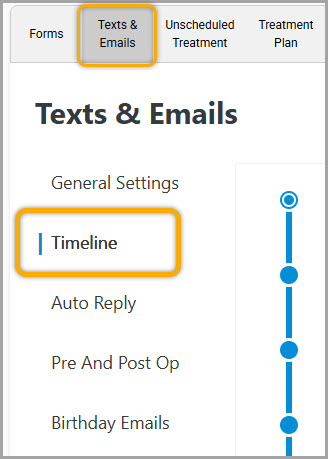
Once you select the 'Appointment Booked' event, you'll see all of the event's settings broken up in to the previously mentioned four sections.
Inside each section you'll be able to:
- Disable/Enable the automation
- Change how frequently Flex scans for these new appointments
- Select which forms to send for the primary and alternate language
- Edit Text Templates
- Include calendar invites on emails
- Send for appointments that have been moved/changed (For existing patients)
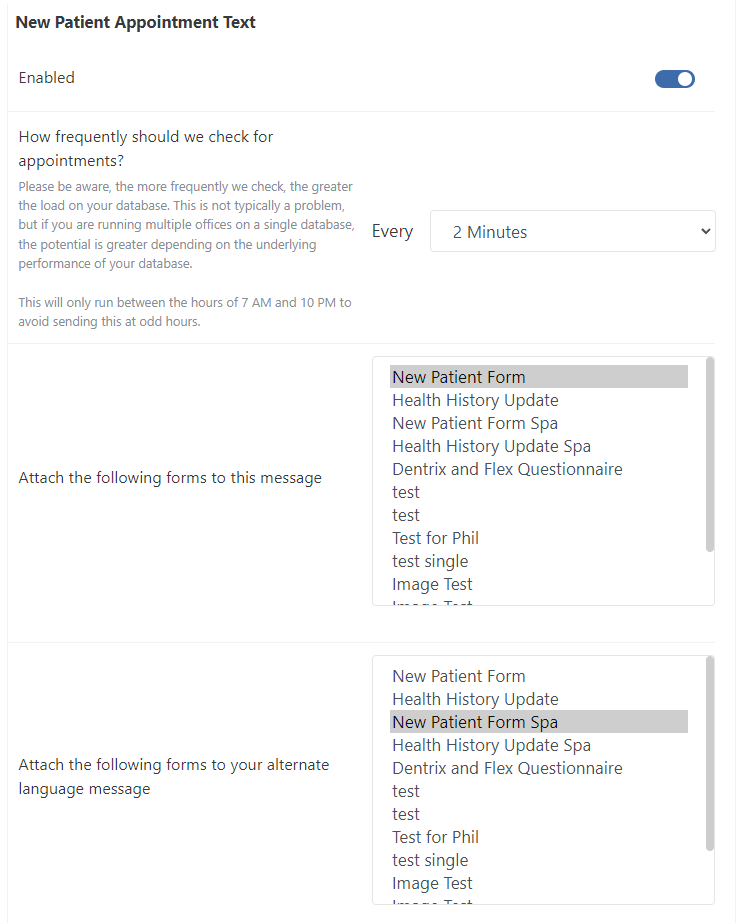
In the example below I have enabled the 'New Patient Appointment Text', Flex is scanning for changes every two minutes, and the 'New Patient Form' is sending for English speaking patients, while the 'New Patient Form Spa' (the Spanish variant) is sending for patients with the Spanish preferred alternate language.
If you have any questions on the above material, please contact support or comment below!
Thank you!
Comments
Please sign in to leave a comment.