
FlexMobile allows you to add, edit, break, view your appointments from inside and outside of the practice. It also allows you the ability to handle two way texting with your patients. First you need to access Flex on your pc, and add your device.
Access:
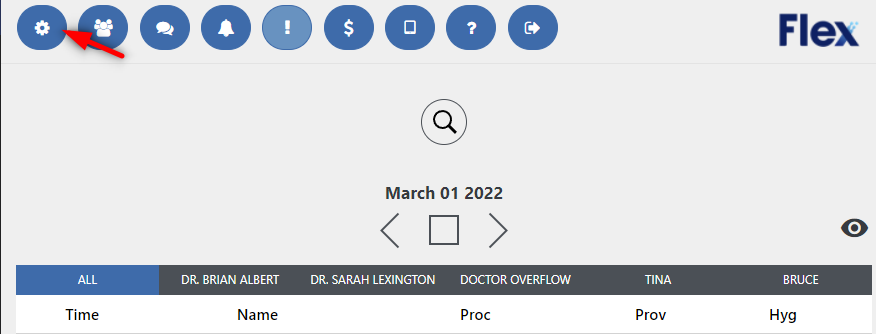
- You will need administrator access to use the 'settings' icon
- Use the 'FlexMobile' tab
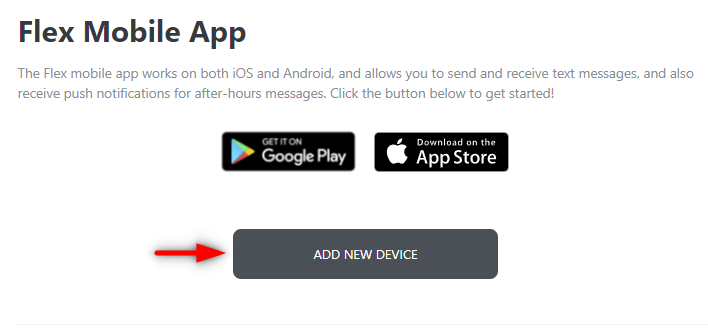
- Click 'add new device'
- Make sure to download the device app first on your android or apple mobile device: here!
Syncing App with Device:
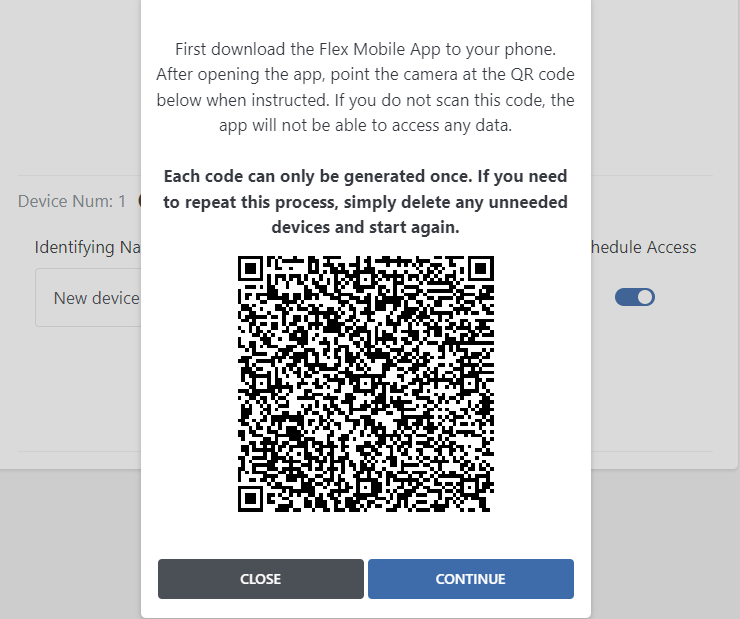
- Once you have downloaded the app, use the QR code to sync the device and app.
- Open the FlexMobile app on your phone, and scan the QR Code
Name Your Device:
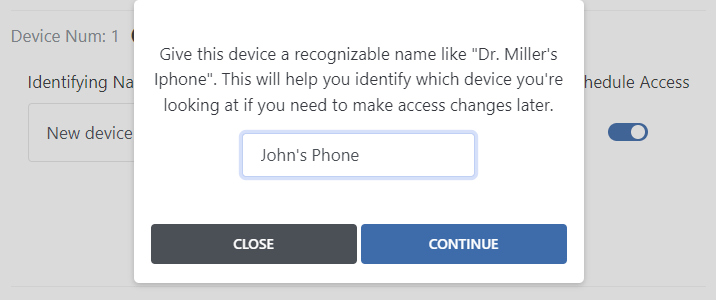
- After scanning the QR Code, you will be prompted with a window to name your device
- This will help distinguish multiple devices from one another (and who they belong to)
- Best practice is to name the device, the staff members name
- Example: John's Phone
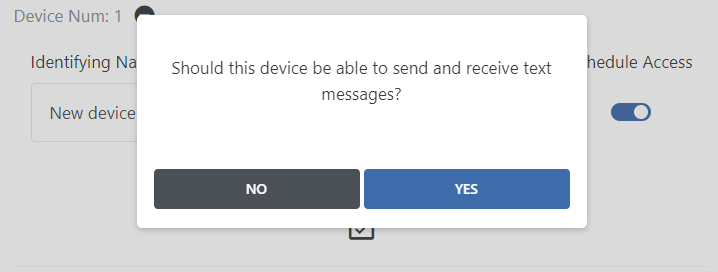
Enable/Disable Text Messages
- Flex Mobile allows you to have two way texting with your patients, in and outside of the office.
- Select yes to enable, and no to disable this option for this specific device.
- Don't worry, you can always toggle it on or off later on as well!
Device Listed:
- After adding your device it will now be shown in the Device list

Text Enabled:
- Toggle on or off the ability for this specific device to text patients
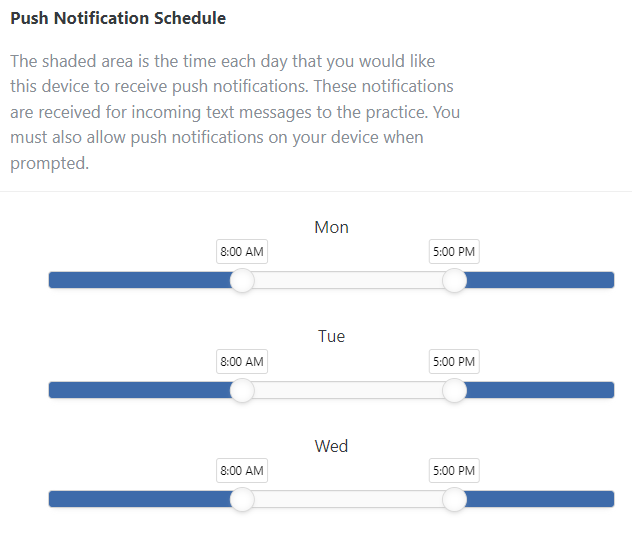
Notification Schedule
- Use the shaded area of the sliders to dictate when you want to be notified of incoming text messages from your patients.
- By default:
- Before 8:00 am
- After 5:00pm
- Before/After typical hours
- By default:
Schedule Access:
- Toggle on/off the ability for this devices to view, create, and edit appointments on your PMS.
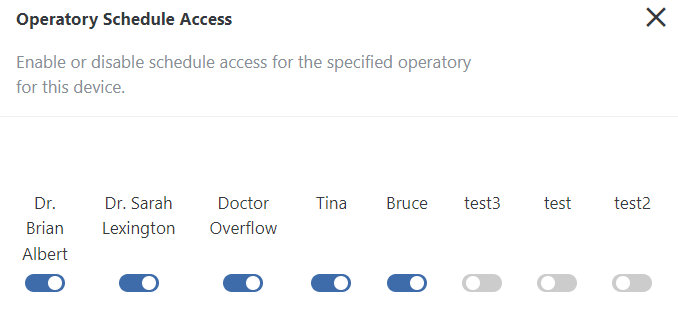
Operatories Allowed:
- Select which operatories you want this device to be able to view (if Schedule Access is on)
- When adding a device for the first time, only the first operatory will be enabled by default.
If you have questions after reading the material above, please comment below or contact Flex Support!
Thank you!
Comments
Please sign in to leave a comment.