
One of the five options for your treatment plans is the 'discount' option. This will allow you to insert a % discount on your patient's treatment plans as long as they are eligible.
First to access your discount option, you will need to start by entering Flex settings, navigating to the 'treatment plan' tab, and selecting the 'discount' sub-section:
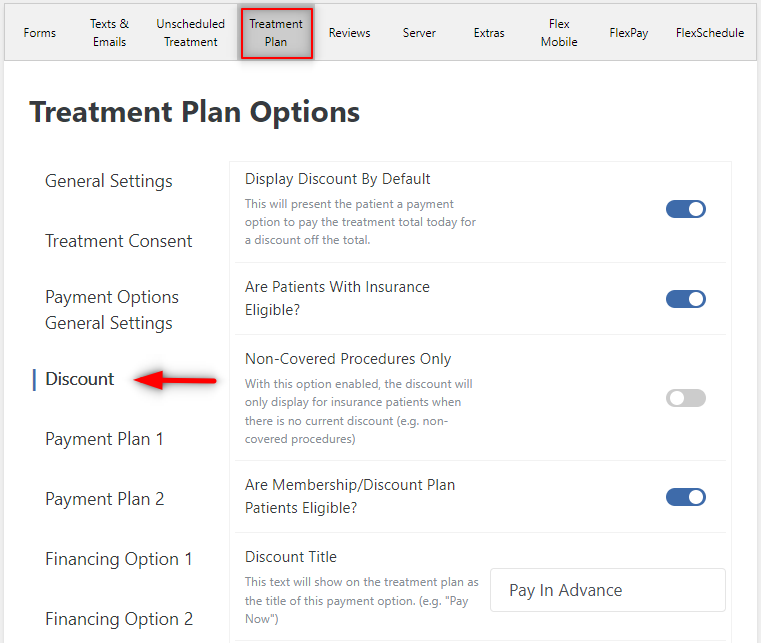
From here you'll be shown a list of options to tailor the discount plan to your practice's needs including:
- Showing 'Discount' by default
- Insurance Eligibility
- Filter to non-covered procedures only
- Membership Eligibility
- Title and Text to show on the treatment plan
- Exclusion of any procedure codes from eligibility
- Discount %
- Minimum amount on TX plan eligibility
In my example below, I have chosen to show the discount by default, included insurance patients as eligible, but excluded patients with memberships. I've also set the discount to 8%, and have a minimum of $1,000 for the treatment total to show the discount:
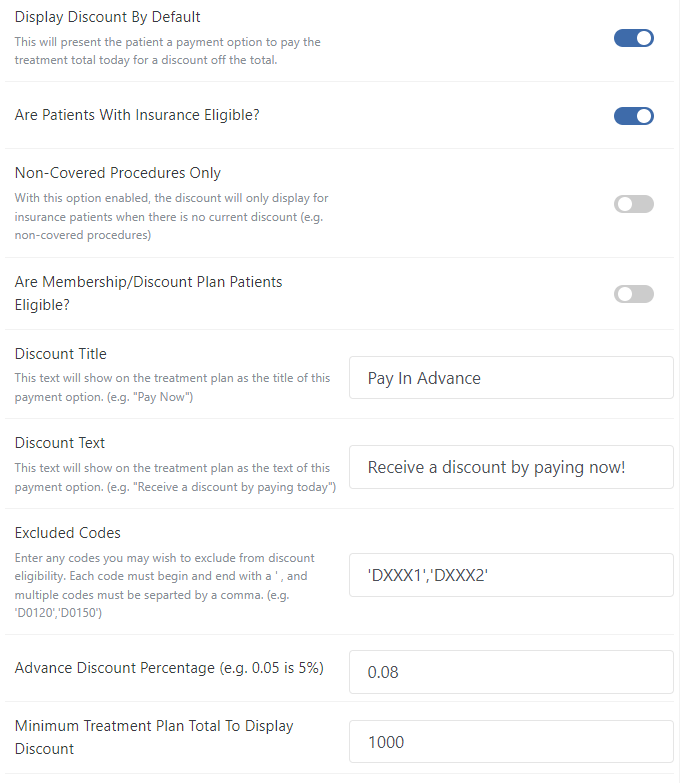
Please be aware, when excluding codes you must follow the format 'Code' this is also explained in the descriptive text for the setting!
If you have any questions about the above information please comment below or contact Flex Support!
Thank you!
Comments
Please sign in to leave a comment.