
Important Notice:
As of June 2022, Google (Gmail) is no longer supports a mechanism (less secure apps) in which Flex uses to send mail.
By enabling 2FA (Two Factor Authentication) and creating an 'app password' you can continue to use your Gmail email with Flex.
Follow the steps below to adjust accordingly:
1. Enable 2FA:
Follow the instructions listed here: https://support.google.com/accounts/answer/185839
2. Create your app password:
Follow the instructions listed here: https://support.google.com/accounts/answer/185833
-------------------------------------
Alternatively please use the below steps as a guide to enable 2FA and to create your app password:
Activate 2-Step Verification
- Open your Google Account.
- In the navigation panel, select Security.
- Under “Signing in to Google,” select 2-Step Verification and then Get started.
- Follow the on-screen steps.
Create & use App Passwords
- Go to your Google Account.
- Select Security.
- Under "Signing in to Google," select App Passwords. You may need to sign in. If you don’t have this option, it might be because:
- 2-Step Verification is not set up for your account.
- 2-Step Verification is only set up for security keys.
- Your account is through work, school, or other organization.
- You turned on Advanced Protection.
- At the bottom, choose Select app and choose the app you're using and then Select device and choose the device you’re using and then Generate.
- Follow the instructions to enter the App Password. The App Password is the 16-character code in the yellow bar on your device.
- Tap Done.
Flex Adjustments:
- Login to your Flex
- Click on the settings icon on the top left (looks like a cogwheel icon)
- From here select the 'server' tab
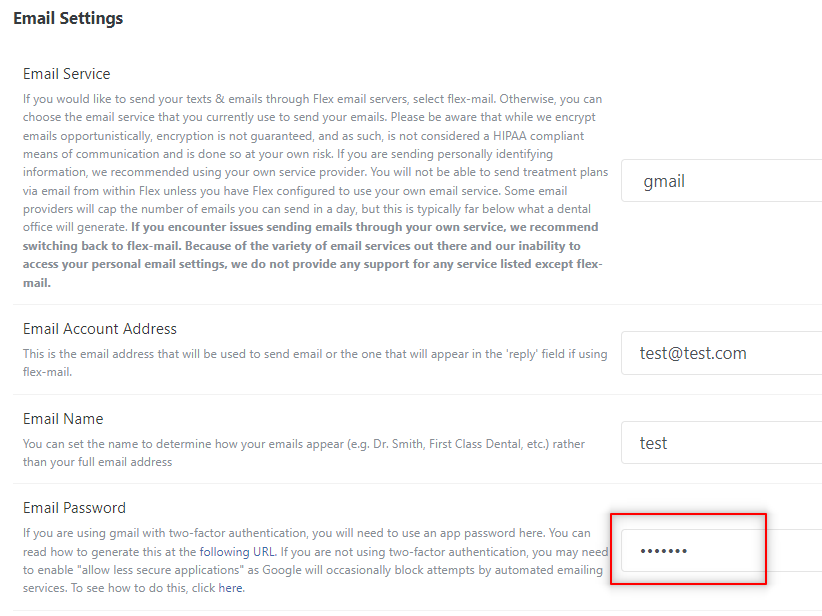
- Scroll down to your Gmail password field
- Enter in your app password in the field below (see image):
- Save your new settings
Now your email should work again as intended!
How to Test/Verify Changes:
- Enter your Flex settings (cogwheel icon on the top left)
- Choose your 'texts & emails' tab
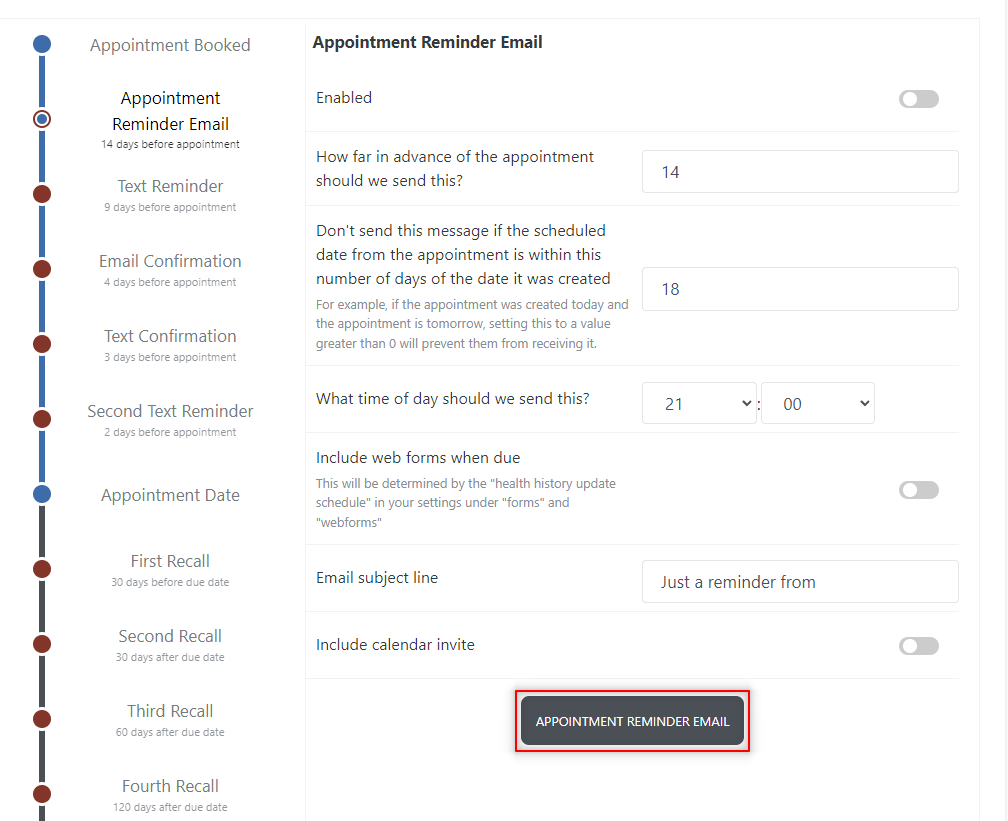
- Select the timeline
- From here choose any of your automatic email reminders/confirmation events
- Choose the email button
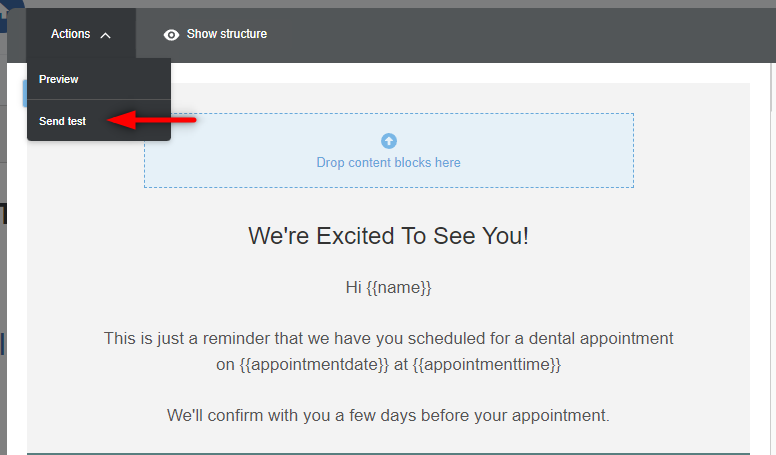
- Select actions and send test
- Enter in an email address to test as the recipient
- Verify the email is received
If you have any questions or issues with the above please feel free to comment below or reach out to our support team at 866-488-1520 , via email support@flexdental.co , or via chat.
Thank you!
Comments
Please sign in to leave a comment.