
Flex is constantly growing and adapting and have plenty of updates! While we do not force anyone to be on the latest update/version it is highly recommended to gain access to all the bells and whistles Flex provides.
To check if you have an update, login and look at your icon on the top right of the page.
New Flex versions will show a 'update available' icon, while older Flex versions will show a download icon:
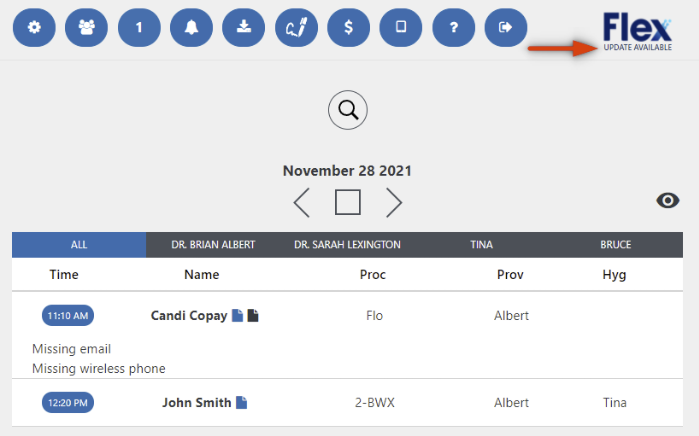
If you notice you have an update available, simply click on the logo and follow the prompts:
- Click on the Flex Logo
- Flex will let you know what your version # is, and the new version #
- When prompted if you'd like to update click 'yes'
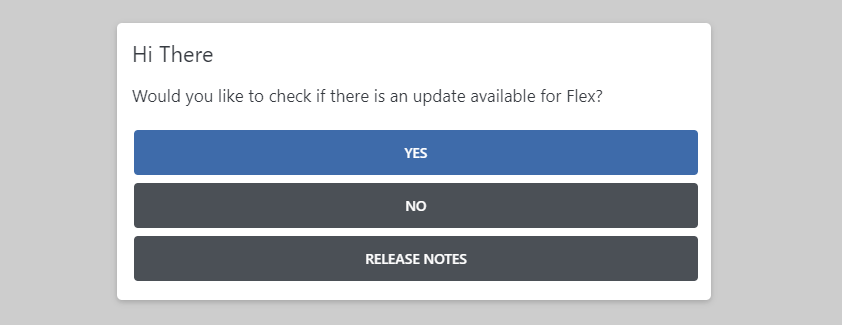
Please be aware that any machine can update Flex and this will update the entire practice!
However, during the update Flex will be down for the practice, so we encourage updates be ran during downtime. (Updates typically take less than five minutes to complete)
If you have questions after reading the material above, please comment below or contact Flex Support!
Thank you!
Comments
Please sign in to leave a comment.